
A customer who pays online and gets no food costs you a refund, a bad review and a cook who heard about it too late. The fix is to treat the kitchen as the finish line, not the checkout page.
For Clover kitchen display online orders to work, a card payment is not enough. The order must exist in Clover with its items, and Clover must know where to send them.
Table of Contents
- How Clover Sends Items to Printers and KDS
- Getting WooCommerce Orders Into Clover With CloverWoo
- Test Your Kitchen Ticket Before Going Live
- Customer Charged But No Ticket Printed?
- Frequently Asked Questions
How Clover Sends Items to Printers and KDS
A WooCommerce order only reaches the kitchen if it first exists as an itemized order in Clover. A card payment on its own is not a kitchen ticket. Many setups fail right here, because people treat four separate things as one. The printer setup itself is covered in our auto-print guide, so this article stays on the kitchen workflow and the KDS:
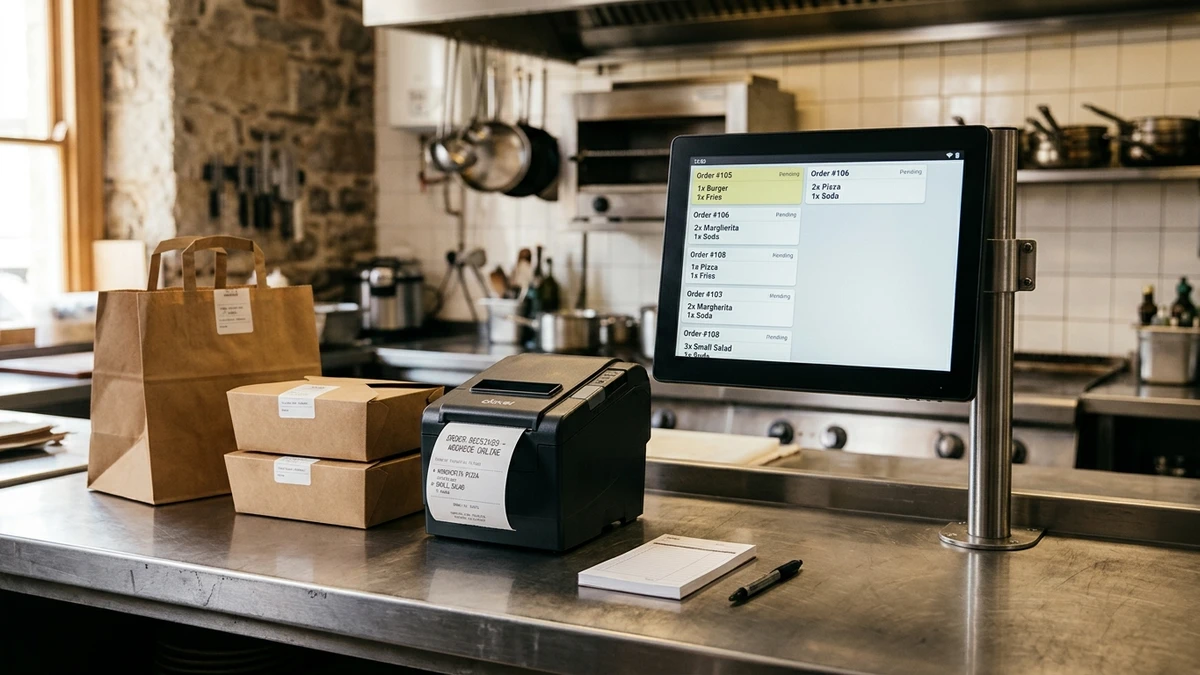
- Payment capture. The card is charged. Clover knows an amount, not a menu.
- The Clover order record. The order with line items, modifiers, notes and tax.
- A printed ticket. Paper from a receipt or kitchen printer.
- A Clover Kitchen Display System. A screen that shows the order to the cooks.
Clover's developer docs treat order creation and printing as separate API jobs. They also warn that default print formatting is limited. So a printed ticket does not prove you have a KDS workflow.
Clover's help pages describe routing by item label or category. You assign labels or categories to a printer or KDS, and items follow that assignment. An item with no label or category may print nowhere. Check Clover's current help pages for your own device, because steps change.
The exact result depends on your Clover device, your printer setup and your merchant account. Do not count on a KDS screen you have not set up. If in-store items already route correctly, you have the hard part done.
Getting WooCommerce Orders Into Clover With CloverWoo
The flow runs in a fixed order:
- The customer checks out on your WooCommerce site.
- The payment is confirmed.
- The order is created in Clover with line items, modifiers, notes, tax and tips.
- Clover routes the items to the printer or KDS you assigned.
Step 3 is where one menu matters. When a WooCommerce product is mapped to a Clover item, it keeps that item's label or category. A web burger then prints where an in-store burger prints. You do not build a second set of kitchen rules for the website.
For the printer trigger and device settings, use the auto-print setup guide. This article does not repeat it. If you run a Clover Mini, the Clover Mini setup guide covers that device.
The official Clover Payments for WooCommerce plugin covers card payments. That is the right tool if payment is all you need. Reaching the kitchen takes order, item and modifier sync on top. CloverWoo adds that, along with Bidirectional Product Sync and Order Management & Auto Print.
One limit applies. Clover card payments at WooCommerce checkout work in the United States and Canada only.
Pro Tip: Map your products before you test anything. An unmapped item is the most common reason an order exists but no ticket appears.
Test Your Kitchen Ticket Before Going Live
Place real test orders and read the ticket or KDS screen the way a cook would. Run each of these:
- Plain item. Check the item name and quantity.
- Item with a modifier. Look for size and add-ons. Clover's own FAQ notes display issues when modifiers show as separate line items, so check how they read.
- Item note. Something like "no onions" must sit with its item.
- Order note. Confirm it appears once, in a place staff will see.
- Tip. Confirm the order total and tip look right.
- Pickup details. Check the order type and customer name.
- Cancelled order. See what happens to a ticket already sent.
- Refunded order. Confirm the payment side and the order record agree.
Test a failed payment too. A declined card should never produce a ticket.
Then check stock. After a test sale, confirm the item count drops in both Clover and WooCommerce. Sync is not instant, so give it a moment before you judge it.
Last, confirm that one order makes one ticket. A repeated webhook delivery should never print the same order twice. Place one order, count the tickets, and watch the Clover Orders list for duplicates. If you need the full printer setup steps, use our auto-print setup guide.
Tell your staff what to expect before launch. A cook who has seen a test ticket will spot a bad one fast.
Customer Charged But No Ticket Printed?
Work through the path in order. Stop at the first thing that is wrong.
- Payment status. Open the payment in Clover. Is it captured?
- The order. Does a matching order exist in Clover Orders with its items?
- Target device and printer. Is the right Clover device selected? Is the printer on, online and enabled?
- Label or category. Does each item have one assigned to the printer or KDS?
Most cases fall into one of two splits. Either payment worked but order creation failed, so no order exists in Clover. Or the order exists, but no printer or KDS is assigned to those items. The first needs an API or log check. The second is a Clover routing fix.
Also check that the device is registered to the correct merchant account. Then check for duplicates, in case an earlier ticket printed and staff missed it.
Be honest about fit. A restaurant that needs a full native Clover restaurant setup should use it. See Clover online ordering vs WooCommerce for that choice. Teams that need a dedicated KDS with prep-station workflows and its own ordering tools should also choose that. Delivery-marketplace aggregation is a different job too.
CloverWoo fits when WooCommerce stays your storefront and Clover stays your in-store system. It is one plugin for Clover payments plus product, stock, order and customer sync with WooCommerce, with free setup help after purchase. For the printer side of the workflow, see How to Auto-Print WooCommerce Orders on Clover POS. If your goal is Clover kitchen display online orders without retyping, see CloverWoo pricing and set up with help.
Frequently Asked Questions
Does a Clover payment automatically create a kitchen order?
No. A payment and an itemized order are separate things. The order must be created in Clover with its line items before any printer or KDS can use it.
Can WooCommerce orders show on a Clover Kitchen Display System?
Often yes, if the order exists in Clover and its items are assigned to a KDS. The result depends on your device, setup and merchant account. Check Clover's current help pages for your hardware.
Why did my order create a Clover record but print nothing?
The items probably have no label or category tied to a printer. Printer offline status or a wrong target device can also cause it. Follow the four checks above in order.
Does the official Clover Payments for WooCommerce plugin print kitchen tickets?
Its documentation focuses on accepting card payments. Order creation and kitchen routing need a connector that syncs orders, items and modifiers.
How do I stop duplicate tickets?
Test with one order and count the tickets. A repeated webhook delivery must not create a second order. If it does, fix that before going live.